
Working with AI — with AI
In just a few years, AI has become part of every stage of my software development workflow.
ChatGPT Deep Research agents help me explore and understand new domains. Warp.dev terminal assists in setting up and troubleshooting my coding environment. Cursor agents generate code based on plans we designed together while Claude Code double-check the results. And if I want a third opinion, I can always ask Codex.
With the release of Claude CoWork earlier this year, AI has also entered my administrative workflow.
CoWork is a more user friendly desktop app that lets you manage your files and perform simple automations. You can easily set up connectors to interact with external services like email, calendar and messaging apps.
It comes with a collection of plugins, each bundling skills and connectors designed for specific tasks. The Data plugin turns your CoWork into a data analyst capable of exploring datasets and building dashboards. The Finance plugin helps read financial statements and manage book keeping.
But the plugin that got me hooked is the Productivity plugin, which helps manage tasks, plan your day and gradually build memory and context around your work.
Supercharge your productivity with AI
When you first setup the plugin by running the /productivity:start command, it creates task and memory files along with an HTML dashboard. The dashboard visualizes your task list and provides an easy way to navigate your memory files, which is surprisingly powerful despite its simplicity.
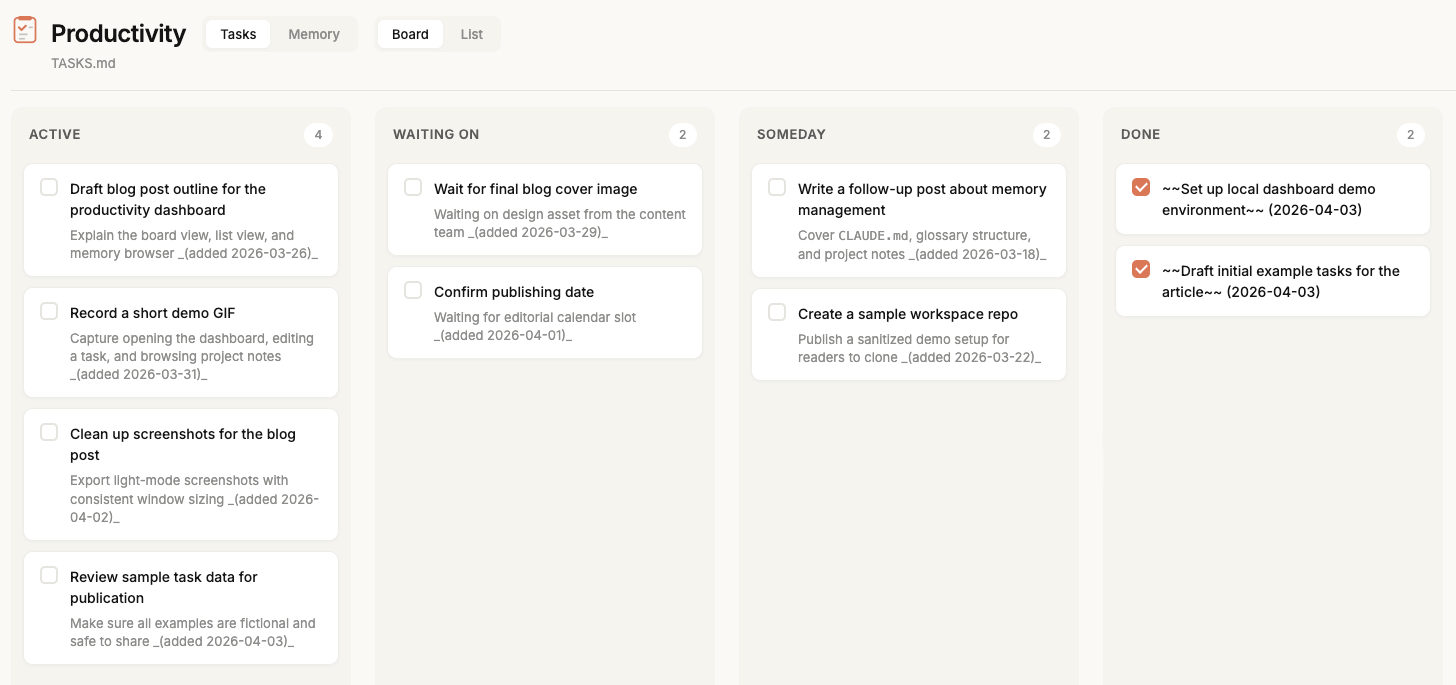
After connecting CoWork to my email, calendar, Slack and Granola for meeting notes, I ran the /productivity:update command. It scanned my recent interactions and began tracking the projects, work streams and people I interacted with, storing them as structured memory files.
When it encounters terms that requires clarification, it prompts me to define them and saves the definition into memory. Over time, this allows the system to better understand the terminology and context specific to my work.
CoWork also supports scheduled tasks, so I created a Morning Brief automation. Each morning, it runs the update command and generates a summary of my day: upcoming meetings, items needing attention, team blockers, and sends it to myself on Slack.
What surprised me was not the automation itself, but how quickly the system began forming a working memory of my job.
Supercharge your AI with AI
CoWork plugins are essentially packages of skills designed to accomplish specific goals. The Productivity plugin includes skills for task and memory management and the start and update commands. Under the hood, these skills are simply prompts that instructs the AI what to do.
In other words, the behaviour of the assistant is not fixed. It is editable.
While you can't directly modify the plugin's built-in skill files, you can add additional instructions through scheduled tasks or your CLAUDE.md. For example, I added a preference that automatically converts blockers raised by my team into tasks.
Since Claude is also great at coding, I asked it to modify the dashboard HTML file to add features like automatic memory refresh, fix a scrollbar issue and introduce a dark mode that is easier on my eyes.
AI is no longer just a tool that improves your workflow. It is increasingly a tool that can improve itself.
I don't believe the current generation of LLMs will become sentient anytime soon. But l’m constantly surprised by what becomes possible when you simply ask AI to figure things out.
Working with AI increasingly means working through AI, alongside AI and sometimes even letting AI improve the systems that power other AI.
Doing more and more with AI
Slowly, I realized I was no longer using AI occasionally. I was delegating more and more work to it.
- Read all emails, meeting notes and conversations for a project and generate a status report.
- Locate documents sent by someone and summarize their content.
- Generate my daily standup updates and post them to my team’s Slack channel.
- Retrieve recent interactions with someone, draft a follow-up message and remind me when to send it.
None of these tasks are groundbreaking but it frees me from doing them manually. I can just ask CoWork to work on it while I focus on something else.
It makes me feel more productive, although I’m not entirely sure whether that is objectively true. I can also see how this could lead to burnout if I try to keep all my agents running at full capacity all the time.
A Day without AI
Then I got hit by the dreaded "You've hit your limit" message from Claude CoWork.

I had burned through my monthly allocation and had to wait more than a week for it to reset.
This was the moment I realized how dependent I had become on AI for organizing my daily tasks and calendar. I felt less productive and oddly annoyed doing things manually even though that was exactly how I used to work before CoWork.
It felt similar to withdrawal. I started to look for alternatives to fill this unexpected gap in my workflow. The inconvenience wasn’t technical. It was cognitive.
Replace AI with AI
I experimented around with OpenClaw and similar tools, but they felt too autonomous. Their real power comes from having full access to your computer, and I was uncomfortable granting that level of access to my work accounts.
Then I realized the plugin was really just skills plus connectors, I could port the system elsewhere.
I began moving the setup into Claude Code while using Kimi 2.5 as the model. I converted connectors like Gmail, Google Calendar and Slack into skills, then copied the task and memory management skills along with the HTML dashboard and adapted everything to work together.
It worked surprisingly well. I started improving the workflow further by adding a skill for daily sync updates and another skill that backs up memory files into Git repository for versioning.
I also moved to OpenCode, which allow me to connect to and switch between different LLM models. This means I can always keep my assistant running regardless of platform limits.
Working with Nexus
My assistant now acts as the central point of communication and holds the working context of my day-to-day activities.
This is why I named it Nexus.
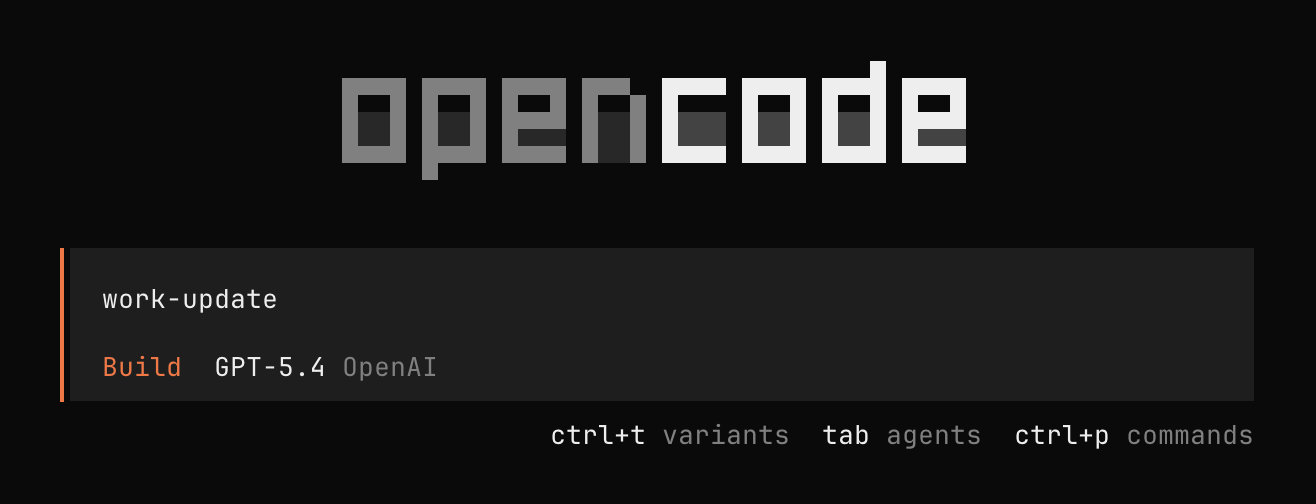
Nexus is essentially a collection plugins that replicate the core functionality of CoWork's Productivity Plugin.
Workflow Skills
work-start- Set up the productivity system by creatingTASKS.md, dashboard and bootstraping memory fileswork-update- Syncs work context from external sources, manages tasks and enriches memorydaily-sync- Collects the three daily standup updates and post them to Slackmemory-backup- Backs upCLAUDE.md,TASKS.mdandmemory/folder to a Git repositorytask-management- Provides simple task management instructions and workflows.memory-management- Implements a two-tier memory system: compactCLAUDE.mdhot cache paired with a detailedmemory/knowledge base
Connector Skills
gmail- Reads and searches Gmail usinggog(CLI tool)google-calendar- Reads Google Calendar viagoggoogle-drive- Reads and searches Google Drive folders and files viagogslack- Reads and sends Slack messages using@slack/web-apigranola- Reads local meetings notes and transcriptsnotebooklm- Manages NotebookLM notebooks, sources, chats and generated artifacts vianotebooklm-py(contributed by John)
With just a dozen skills, all of them built with the help of AI itself, I'm able to stay on top of my work while continuously improve the system through daily use.
To view the memory files on my iPhone, I sync them through iCloud Drive and open them in Obsidian. The graph view turns the memory system into something visible and navigable.
Whenever Nexus struggles to complete a task or encounters a new scenario, I simply ask it to brainstorm possible solutions, then implement the improvements together. Over time, the assistant evolves alongside my workflow.
Build your AI with AI
Nexus might not fit your workflow, but since it is ultimately just a collection of skills written in markdown files, you can easily adapt it to your own needs. You can tweak existing skills, remix them, or start from scratch by prompting AI to build the exact workflows and capabilities you want.
With free tools like OpenCode, you have access to a range of free models, so hitting usage limits is rarely a concern while experimenting. And if you don’t feel like building everything yourself, you can explore skills.sh, a directory of thousands of community-created skills that you can reuse and customize.
The barrier to building your own AI assistant is no longer technical complexity. It is simply deciding how you want to work and asking AI to help you build it. The tools exist, models are accessible, and the barrier to entry has never been lower.
If you haven’t started working with AI yet, now is the time to start building the AI that works with you. Your workflow can evolve from a series of manual tasks into a dynamic system where AI organizes, plans, and even improves itself alongside you. Working with AI is no longer just about using tools. It is about designing intelligence that evolves alongside how you work.
Don’t just use AI—build the AI that works with you.


Comments